If NinjaTrader freezes or Doesn’t respond as soon as you launch the program, scroll to the bottom of this article.
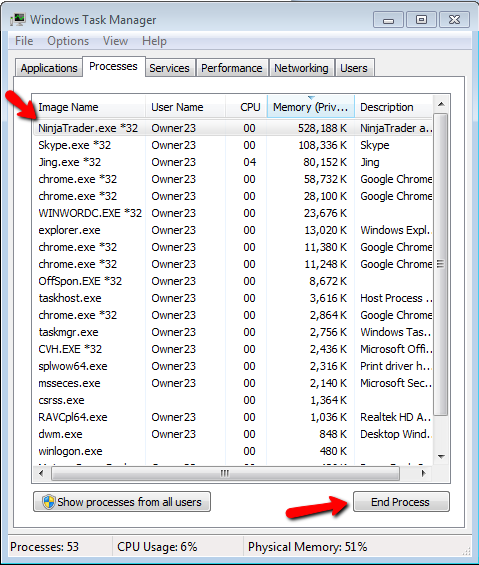
If your Ninja Trader is “Freezing up/Not Responding” when attempting to load a Saved Workspace with any charts that include the Expected Volume Indicator, the cause may be that the setting for the Expected Volume Indicator “Show Historical data (Diagnostic Bars)” has been set as True . If you decide to wait for the Workspace to load as it should eventually do so, you will then need to make sure the “Show Historical Volume” setting is set and saved as False on each chart for the Expected Volume Indicator before saving the Workspace again. The other option that you have, would be to close your Ninja Trader (you may need to do this by using your Task Manager to “End Process” after selecting Ninja Trader from the list as shown below) and then re-create the Workspace and Save it.
So if you have an open Workspace that you had changed the setting for the Expected Volume Indicator on a Chart in it to “Show Historical data (Diagnostic Bars)” from False to True, you will need to change the setting for the Indicator back to “False” before saving it again. (Screenshot below shows the setting after accessing the Indicator list for the chart and highlighting the Expected Volume Indicator)
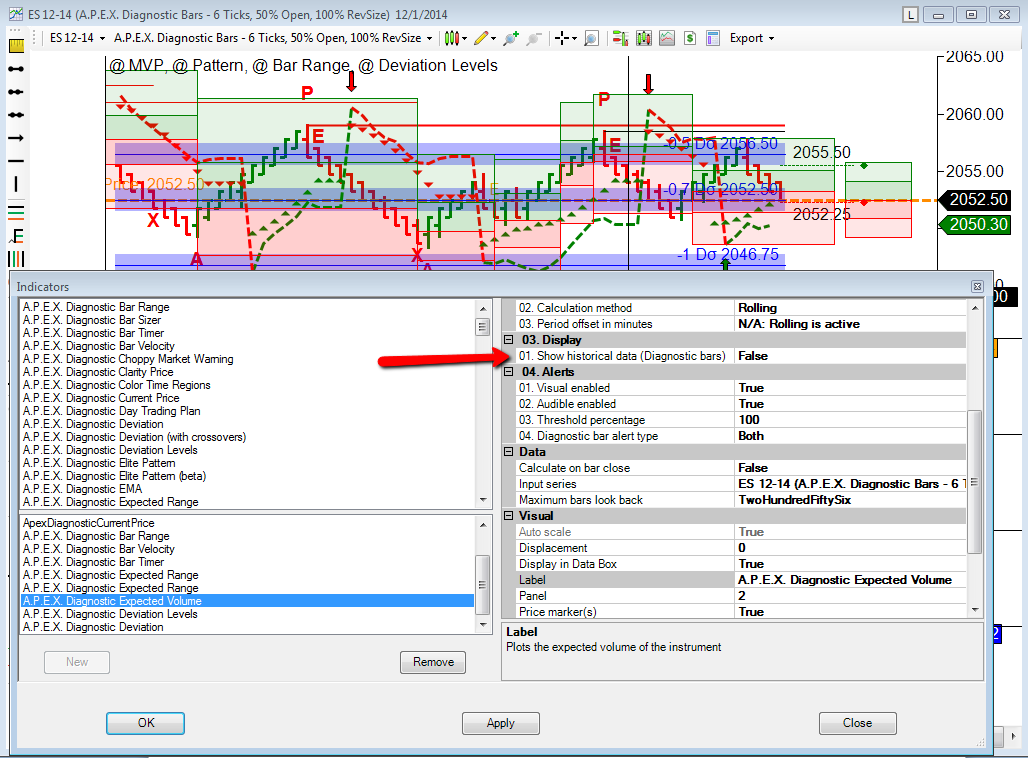
After making sure that each chart that you had changed this setting for in the Workspace has been changed back to False, you can than Save and close the Workspace.
Helpful Tip from one of our Traders: After creating a Workspace and saving it, you can then use the “Save Workspace as” option for the same Workspace and add “duplicate” after the Workspace name thereby creating an identical Workspace that can be accessed in the event something occurs to the originally saved Workspace.
If NinaTrader freezes or is Not Responding as soon as you launch it, that means you have a corrupted workspace open in the back ground. You did not follow our recommendations and close out every workspace except a completely blank workspace before shutting down NinjaTrader. You will need to navigate to your workspaces folder inside of My Documents/NinjaTrader, and move all the files in there to a temporary location, (cut and paste). Then you may launch NinjaTrader with no issue. Next, you’ll have to move all the workspaces back and check them one by one to see which one is causing the issue. Which ever workspace is corrupted, you’ll have to permanently delete it and recreate it.
